 doduJoin waitlist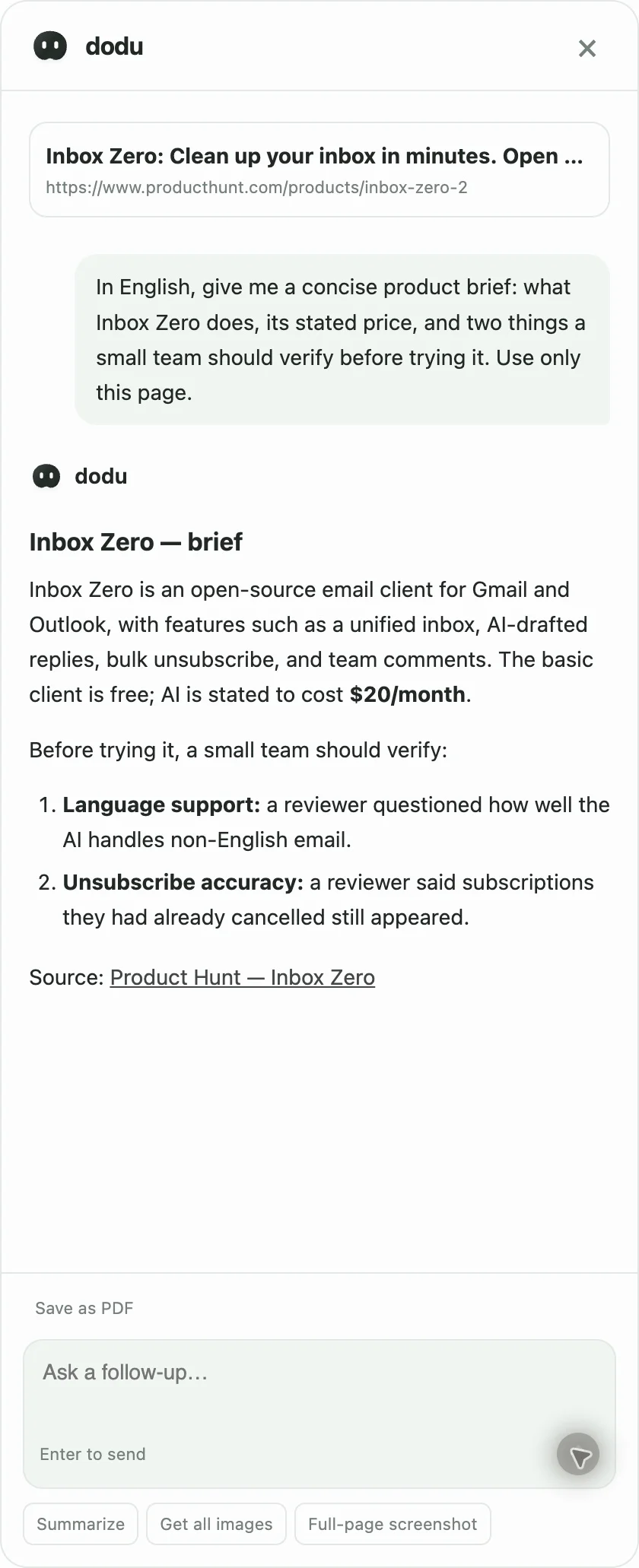
From browsing to an answer, in place
- Wake. Shake the mouse to enter selection mode. The page dims around the highlighted target.
- Select. Move across the page, then click the paragraph, image or supported card you want to work with.
- Ask. Choose an action or type your own request. A floating conversation opens and the answer arrives progressively.
- Continue. Ask a follow-up, save useful output, or close the panel. Esc exits selection mode.
One focused question beats a copied page
Researching a product? Select its listing and ask what it does, who it is for and what to verify before trying it. Reading a long article? Ask for the main argument and the evidence behind it. Looking at an image? Ask for an explanation tied to the selected image.
You can also use Ask dodu in the browser toolbar to ask about the current page without using the gesture. For linked cards, the answer depends on whether the destination content can be retrieved.
Keep the result, then get back to the web
An answer is useful now; a saved file is useful later. Generate a PDF from a useful answer and save it to SPACE. Capture the full page separately when you need the visual source. Inside Workspace, open SPACE to find and preview the saved files.
This is the workflow shown in our real-app demonstration: Product Hunt research, an AI brief, a saved PDF, a full-page screenshot and a follow-up plan in DODU.
What to expect in the beta
The current demonstration uses the macOS app. Website structure, access restrictions and model availability can affect selection and answers. Review important claims against their source. AI processing uses external providers; see our Privacy Policy for what context may be sent.